
ALERTS
Email [email protected] with any feedback or concerns. We would love to hear about your experience with this App Clip.
You’ll need at least one debit or credit card in your Apple Pay wallet to use the GrabScanGo app clip for purchases. See Apple Pay Help for setup.
INTRO
This Help page is for the latest version of the GrabScanGo app clip.
The app clip uses iBeacon technology, which requires both Bluetooth and Location Services to be ON.
TO USE THE APP:
- You must have Bluetooth ON
- You must have Location Services ON
- You must ALLOW camera access to scan product barcodes
CONTENTS
INITIAL SETUP
TURN BLUETOOTH ON — if you did not turn it on during app clip installation
- Go to Settings → Bluetooth
- Turn Bluetooth ON
Note: If your phone is not detecting a nearby market, try turning Bluetooth OFF and then back ON.
TURN LOCATION SERVICES ON — if you did not turn them on during app installation
- Go to Settings → Privacy & Security → Location Services
- If Location Services are OFF, turn them ON
- Scroll down and tap App Clips
- Tap GrabScanGo app clip
- Select While Using the App
Note: If your phone is not detecting a nearby market, try turning Location Services OFF and then back ON.
PURCHASING PRODUCTS
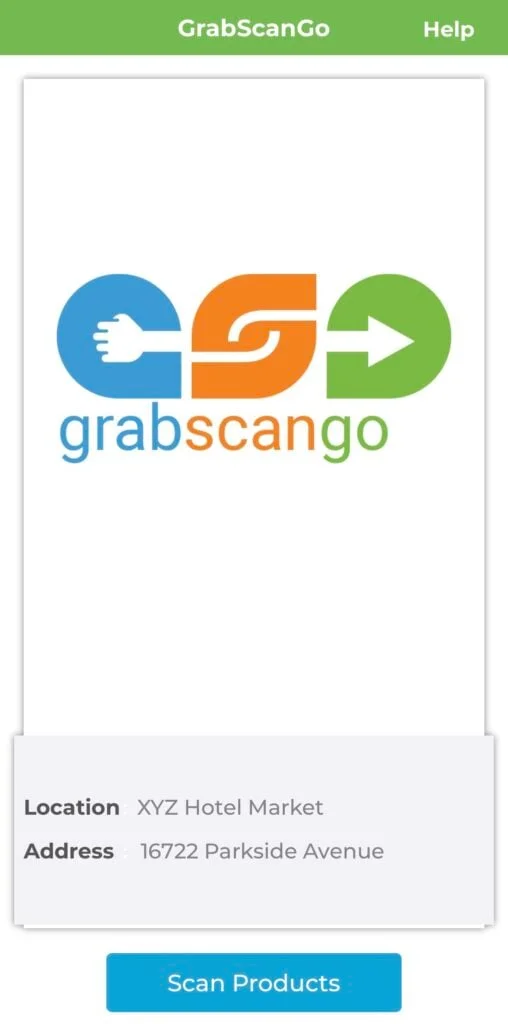
Walk to within 5 feet of the market — the market should then be displayed on your screen.
ADD PRODUCTS TO SHOPPING CART
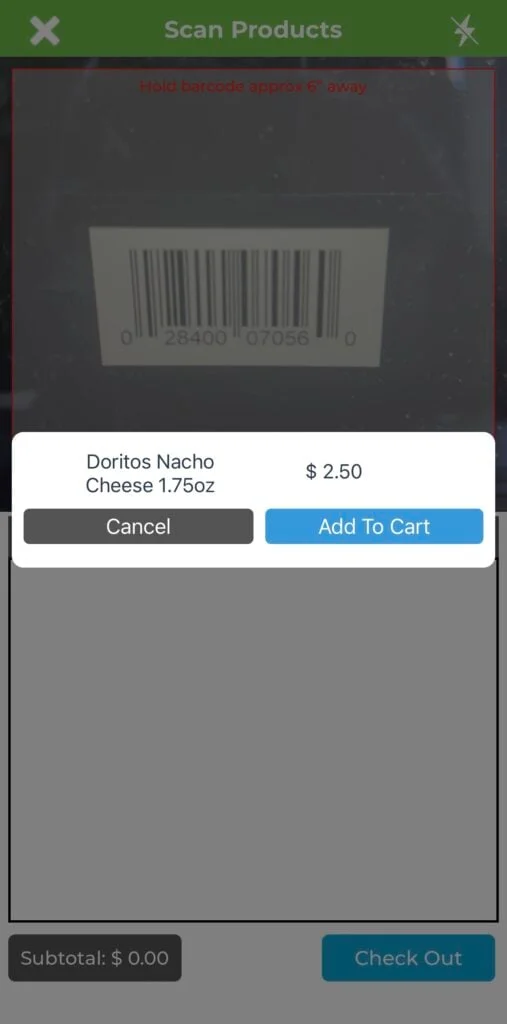
- Tap Scan Products
- Tap OK to allow camera access (used to scan barcodes)
- Scan product barcodes and tap Add To Cart
CHECK OUT & PAY FOR PRODUCTS
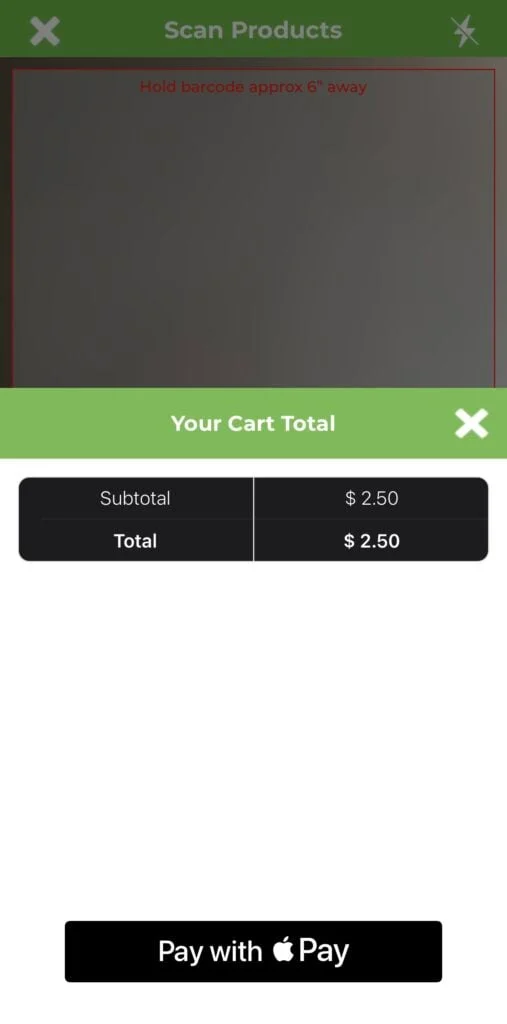
- When finished scanning, tap Check Out
- Review your cart and total
- Tap Pay with Apple Pay
- Select a card from your Apple Pay wallet
- Double-click the side button, then use Face ID, Touch ID, or your passcode
SEND RECEIPT THROUGH EMAIL
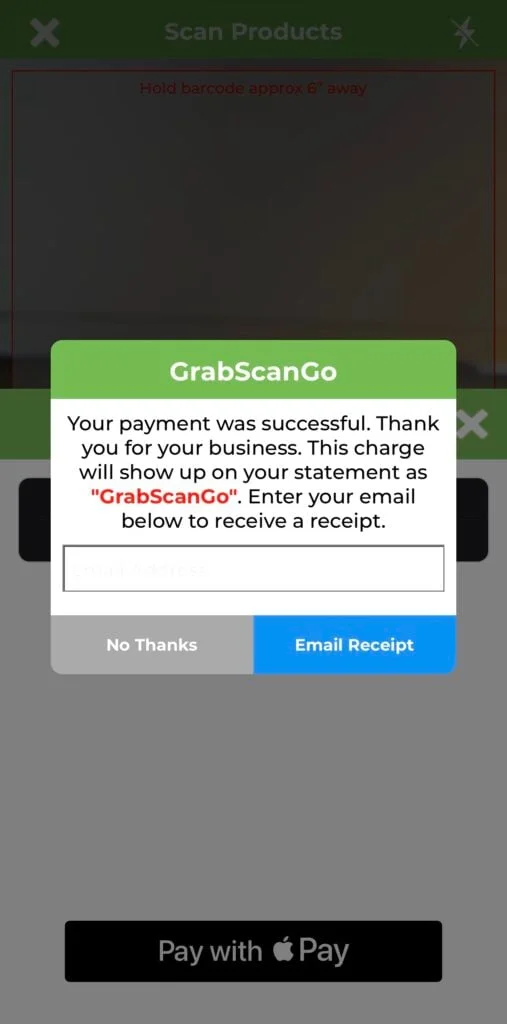
Enter your email address and tap Email Receipt to receive a copy of your transaction.
APPLE PAY
To purchase products using the GrabScanGo app clip, add at least one debit or credit card to your Apple Pay wallet. See Apple Pay Help for setup instructions.
TIPS & TROUBLESHOOTING
APP CLIP NOT RECOGNIZING NEARBY MARKET
- If you have a good internet connection but the app still doesn’t recognize the market, make sure your Bluetooth and Location Services are ON.
- If they are ON and you still have issues, terminate and reopen the app clip.
SCAN WINDOW IS BLANK/GREY
Make sure you’ve allowed camera access:
- Go to Settings → Privacy & Security → Camera
- Tap App Clips
- Turn Camera ON for GrabScanGo
NO INTERNET CONNECTION
Check your Wi-Fi or cellular connection. Try loading any website in your mobile browser to confirm connectivity.
Note: Many Wi-Fi access points require you to sign in, check in, or accept terms before connecting you to the internet.
PRODUCT BARCODE NOT SCANNING
- Ensure the barcode is well-lit so your camera can recognize it.
- For refrigerated items, wipe away moisture that may obscure the barcode.
- If it still won’t scan, the product may not be correctly added to the system or the barcode may be damaged.
REFUNDS
- If a product is damaged or expired, you may request a replacement or refund by contacting us. Include the location name, product name, date of purchase, and a brief description.
- We reserve the right to deny refunds or replacements in cases of abuse or circumstances beyond our control.
- Refund requests must be made within 7 business days of purchase.
- Requests are processed in the order received, usually within 5 days. You’ll receive an email when processed.
- Refunds can only be made to the original payment card account — no cash refunds.
CONTACT US
- Fill out the form on our Contact Us page, or
- Email [email protected]